
How To Make an Invoice on Your Phone and Send a Professional PDF
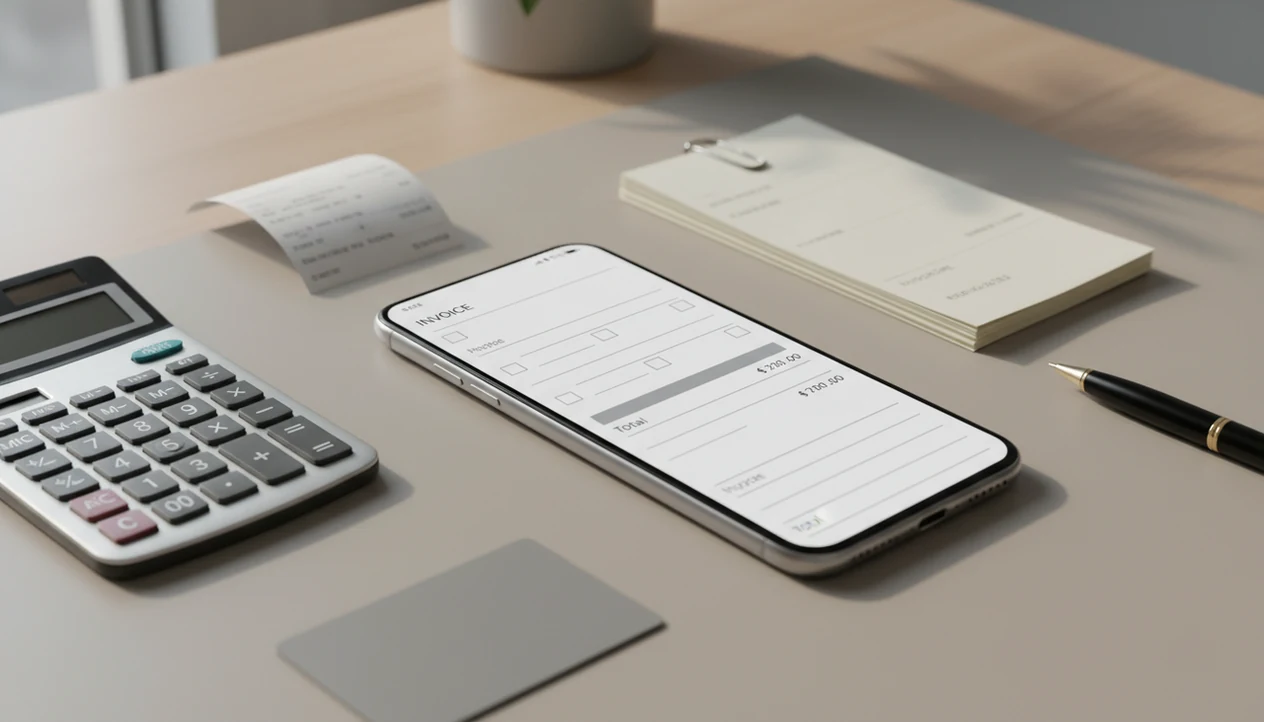
To make a professional invoice on your phone, use a mobile invoice app, add your business and client details, enter line items, taxes, due date, and payment terms, then export or send it as a PDF, email, link, or message. This how to make invoice on phone workflow works for freelancers and small businesses that need to bill clients without a computer.
> A mobile invoice is a professional bill created on a smartphone that includes seller details, client details, invoice number, dates, itemized charges, taxes, totals, payment terms, and a sendable PDF or link.
- A phone-made invoice should include the same required details as one made on a desktop: business info, client info, invoice number, dates, line items, totals, taxes, and payment terms.
- The fastest workflow is to create or select a client, add services or products, set tax and due date, preview the PDF, then send it by email, WhatsApp, text, or payment link.
- Use an invoice app that stores invoice history, keeps numbering consistent, tracks paid or overdue invoices, and backs up your data.
Mobile invoice workflow at a glance
A phone invoice can be as professional as a desktop invoice when it includes the required fields and exports a clean PDF copy. The basic mobile invoice workflow is: open the app, create an invoice, add the client, add line items, set tax and terms, preview, send, and track payment status.
Most users already have the hardware for this: Pew Research Center reports that smartphone ownership is now widespread among U.S. adults, with 90% owning a smartphone in its latest mobile fact sheet source. If you keep the claim that 69% of small businesses used mobile devices for business operations, add the original survey URL immediately after that statistic; otherwise delete that clause.
On a job site, the clipboard may still be tucked under one arm. The invoice can still leave before the van does.
Depending on the app, you can send by PDF, email, WhatsApp, text, link, or QR code.
Phone invoice details to gather before billing a client
Gather the invoice details before you start tapping on a small screen. It prevents copied due dates, missing tax lines, and client names spelled two ways.
- Business identity: Add your business name, logo, address, email, phone number, website, and tax ID or VAT number if it applies.
- Client record: Collect the client name, billing address, email or phone number, and the right contact person.
- Work details: List each product or service, quantity, rate, discount, tax, currency, and any reimbursed expense.
- Payment setup: Decide the due date, accepted payment methods, payment terms, and notes such as bank transfer details.
- Invoice numbering: Choose a pattern before the first invoice, such as `INV-0001` or `2025-CLIENT-001`.
For freelancers, a simple mobile invoice workflow is often easier than editing a spreadsheet because saved clients and items reduce repeated typing.
How phone invoice apps calculate totals and create PDFs
Phone invoice apps work by storing structured billing data, then using that data to calculate totals and render a sendable invoice document. In plain terms, the app remembers your business, clients, services, taxes, and payment notes so each new invoice starts partly filled in.
The app calculates subtotals from line items, then applies discounts, taxes, deposits, partial payments, balances, and due dates from the fields you enter. It then renders the invoice as a professional PDF or web invoice and shares it through phone-native channels like Gmail, Outlook, Messages, WhatsApp, or a browser link.
Mobile invoicing tools such as FreshBooks, Wave, Zoho Invoice, Invoice2go, and Invoice Maker Teo let freelancers and small businesses create, send, and track invoices and estimates; they are not full enterprise accounting systems. Choose based on PDF export, saved client records, tax settings, reminders, payment tracking, backup, and whether the app fits your country’s invoicing rules.
Most apps also show draft, sent, viewed, paid, partially paid, and overdue states.
How to use a phone invoice app step by step
Use this sequence when you need to create an invoice on your phone and send it without cleaning it up later on a laptop. The same pattern applies to most dedicated mobile invoice apps.
- Set up your business profile with name, logo, address, contact details, currency, tax number, and default payment terms.
- Add or select the client from your saved client record, then confirm the billing email or phone number.
- Enter line items with descriptions, quantities, rates, discounts, deposits, mileage, or expenses.
- Set taxes and due date before sending, especially if the job uses Net 7, Net 15, Net 30, or deposit terms.
- Preview the PDF and check the invoice number, names, totals, tax, due date, and payment instructions.
- Send and track the invoice by email, PDF attachment, text, WhatsApp, link, or QR code where supported.
Review slowly before sending. A cracked screen makes small errors easy to miss.
Step 1: Business details for a phone invoice
Start with the sender side of the invoice. Add your business name, logo, address, email, phone number, website, and tax or VAT number if your invoices need one.
Set your default currency, invoice template, payment instructions, and standard payment terms. These details repeat on every new invoice, so a careful setup now keeps the next invoice easy. The logo at the top, tax line below the subtotal, and notes field for payment terms should look right before real client work begins.
Security matters too. Use a phone lock, keep the app protected, update the device, and enable cloud backup if the app supports it. A lost phone should not mean lost invoice history.
For Apple-specific setup, the flow is similar to our how to make invoice on iPhone guide.
Step 2: Client details and invoice number on phone
Do invoices made on a phone need client details and invoice numbers? Yes. Each invoice should identify the buyer and carry a unique invoice number for records, payment follow-up, and bookkeeping.
Add the client name, billing address, email, phone number, and optional contact person. If the client has two locations or two project managers, label the record clearly. Choosing the wrong address book entry is a small tap with a long cleanup.
Use a simple numbering pattern such as `INV-0001`, `INV-0002`, or `2025-SMITH-001`. Avoid reusing numbers, even for small jobs. An unpaid job circled on a notebook is already hard enough to track; a missing invoice number makes it worse.
Android users can follow the same structure in a dedicated invoice maker app for Android.
Step 3: Line items, taxes, discounts, and totals
Line items explain what the client is paying for, so each product or service should appear on its own row. Add a clear description, quantity, rate, and amount.
Use hourly line items for time-based work, fixed-fee items for project milestones, product rows for goods, mileage rows for travel, and expense reimbursement rows for materials or pass-through costs. Design mockups open beside invoice notes, for example, should become “Homepage mockup revision, 3 hours,” not just “design.”
Add discounts, taxes, shipping, deposits, or partial payments when they apply. The app should calculate subtotals, tax, and total automatically, but you still need to check the inputs. A tax column dragged to the wrong row in a spreadsheet is exactly the kind of mistake mobile apps are meant to reduce.
Clear line items usually reduce client questions because the invoice answers “what is this for?” before the client has to ask.
Step 4: Due dates and payment terms in a mobile invoice
Payment terms tell the client when and how to pay. Common options include due on receipt, Net 7, Net 15, Net 30, milestone billing, and deposit terms before work starts.
Add accepted payment methods such as bank transfer, card, wallet, cash, check, or a payment link where supported. If you charge late fees, state them clearly in advance and use them only when allowed by your local rules or contract. Don’t bury the terms in a vague note.
A short invoice note helps: “Thank you. Please pay by bank transfer using the invoice number as the reference.” Simple wins.
Reminders can help with overdue invoices because they turn follow-up into a scheduled task instead of a memory test. For more delivery detail, use a dedicated how to send invoice with phone workflow.
Step 5: Invoice PDF preview, sending, and payment tracking
Preview the invoice PDF before sending. Check business and client names, invoice number, issue date, due date, line item amounts, tax, total, balance due, and payment instructions.
Then send the invoice by email, PDF attachment, text, WhatsApp, link, or QR code, depending on the app and the client’s preference. Exporting a clean PDF before sending through Gmail or Messages gives you a stable record, even if the conversation later gets messy.
Electronic invoicing can reduce invoice processing costs by 60–80% compared with paper invoices, according to OECD research source. An EU e-invoicing study also reported that automated electronic invoicing can cut processing time by up to 65% source.
Use statuses like sent, viewed, paid, partially paid, and overdue to follow up. Save both the PDF and the app record for bookkeeping.
Common phone invoice mistakes that delay payment
Most delayed phone invoices are not delayed because they were made on a phone. They are delayed because the document leaves with missing or confusing details.
- Missing or reused invoice number: Skipping the invoice number makes later payment tracking harder.
- Vague line items: “Work” does not tell the client the date, deliverable, quantity, or rate.
- Forgotten adjustments: Taxes, discounts, deposits, shipping, and payment instructions often get missed in a hurry.
- Wrong client selected: A saved address book is useful, but similar names can cause a bad send.
- No PDF preview: The PDF preview catches layout problems before the client sees them.
- Tax assumptions: An app may calculate what you configure, but it does not guarantee every local tax or legal rule is correct.
That last point matters. Software helps with the workflow, not judgment.
Professional phone invoice checklist before sending
Use this checklist before the invoice leaves your phone. It is faster than resending a corrected PDF after the client has already forwarded the first one.
- Confirm business name, logo, address, email, phone number, and tax details.
- Confirm client name, billing address, email, phone number, and contact person.
- Check invoice number, issue date, due date, currency, subtotal, tax, total, and balance due.
- Open the PDF preview and make sure the layout is readable on mobile and desktop.
- Send a test to yourself if you are using a new template or payment link.
- Confirm the invoice is saved, backed up, and marked sent in the app.
For contractors and field teams, an app that creates PDF invoices is often safer than texting a plain total because the PDF preserves the billing details.
Limitations
Phone invoicing is useful, but it is not the right tool for every billing situation. Treat the phone as the fast billing surface, not a replacement for every accounting process.
- Small screens can make long invoices or many line items slower to enter.
- Complex tax rules, multi-entity accounting, payroll, or inventory-heavy workflows may require accounting software or specialist advice.
- Poor connectivity can delay sending, syncing, payment tracking, cloud backup, or payment-link loading.
- A lost or compromised phone can expose client and billing data if the device lock, app access, or backup settings are weak.
- Not every app integrates with every bank, payment processor, tax system, or country-specific e-invoicing network.
- Users are still responsible for setting tax rates, legal details, payment terms, and late-fee language correctly.
- Some clients still prefer a desktop email thread, purchase order process, or portal upload.
If your invoice affects tax reporting, legal rights, or regulated billing, ask an accountant or qualified adviser.
FAQ
Can I invoice from my phone?
Yes. A phone can create a complete professional invoice if it includes business details, client details, invoice number, dates, line items, taxes, totals, payment terms, and a PDF or link.
How do I make an invoice on iPhone?
Use an iPhone invoice app, add your business profile, select a client, enter line items, set tax and due date, preview the PDF, then share it by Mail, Messages, WhatsApp, or link.
How do I make an invoice on Android?
On Android, open an invoice app, create a new invoice, add client and item details, set taxes and payment terms, preview the PDF, and send it by Gmail, text, WhatsApp, or link. The same steps apply across most Android phones.
Can Samsung phones make invoices?
Yes. Samsung phones run Android, so they can use Android invoice apps to create, send, and track invoices.
Can I make invoices for free on my phone?
Yes, some apps offer free plans, trials, or simple templates, but they may limit invoice count, branding, reminders, payment links, or exports. Check the feature limits before using a free option for client billing.
Is a phone invoice legal?
A phone invoice can be valid if it includes the invoice information required for your business, client, and jurisdiction. The format matters less than the accuracy and completeness of the invoice details.
How do I send an invoice PDF from my phone?
Preview or export the invoice as a PDF, then share it by email, messaging app, link, or attachment from the phone’s share menu; keep both the PDF and sent record for bookkeeping.
Do invoices need numbers?
Yes. Unique invoice numbers help with records, payment tracking, client questions, and follow-up on unpaid invoices.
Can I track invoice payments on my phone?
Yes. Many invoice apps show statuses such as draft, sent, viewed, paid, partially paid, and overdue so you can follow up from your phone.