How To Make an Invoice on iPhone for Client Billing
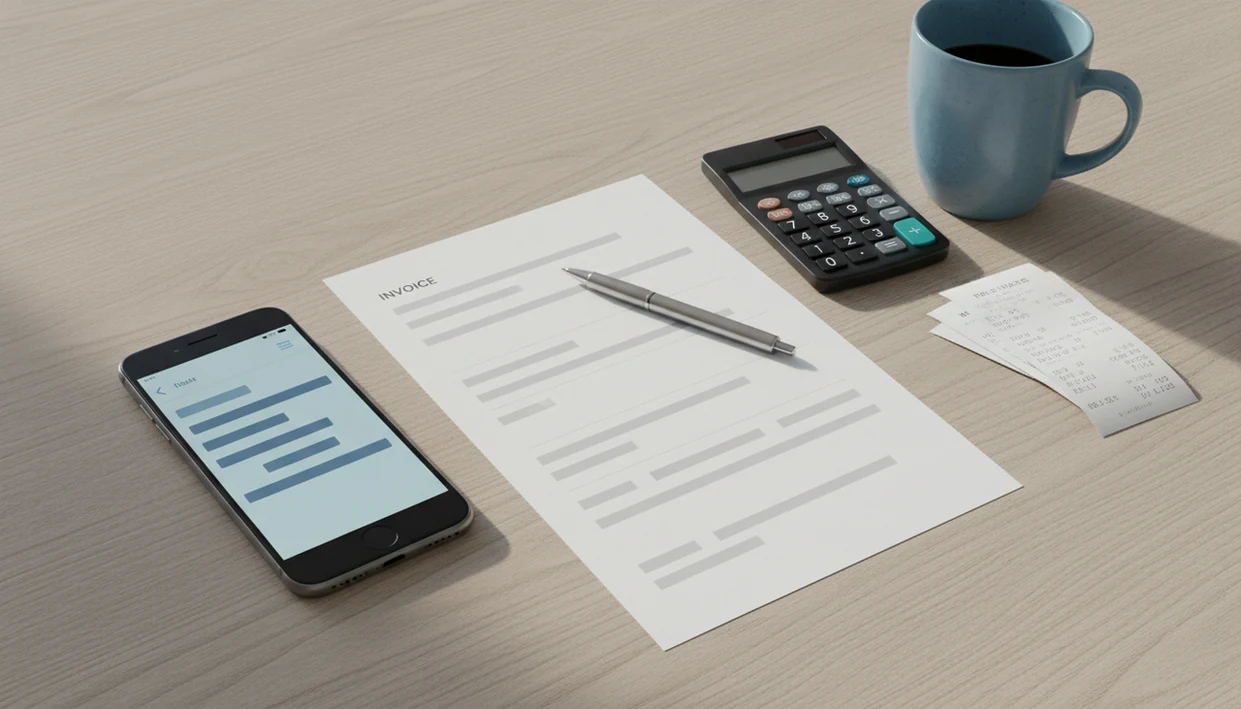
To learn how to make invoice on iPhone, use either Apple Numbers with an invoice template or a dedicated iPhone invoice app, then add your business details, client details, line items, totals, due date, and export the invoice as a PDF. A dedicated app is usually faster if you invoice repeat clients, send estimates, or need payment status tracking from your phone.
> Definition: An iPhone invoice is a mobile-created billing document that shows who is billing, who is being billed, what work or products were provided, how much is owed, and when payment is due.
- Use Numbers for a simple free invoice, or an iPhone invoice app for reusable clients, estimates, reminders, and payment tracking.
- Every invoice should include business details, client details, invoice number, issue date, due date, line items, taxes, discounts, totals, and payment terms.
- Send the finished invoice as a PDF or through the app instead of sending a screenshot.
iPhone Invoice Basics Before You Create an Invoice on iPhone
An invoice is a billing document, not a text note, chat message, or quick total typed into an email. It should give the client enough information to review the work, match the charge to the job, and pay without asking you to resend details.
A basic mobile invoice needs your business name, client name, invoice number, issue date, due date, line items, totals, and payment terms. If tax, discounts, late fees, or project references apply, those belong on the invoice too.
Small mistakes show up fast on a phone screen.
Mobile invoicing matters because many freelancers and small businesses bill away from a desk. In 2024, the U.S. had 16.5 million self-employed workers overall, according to the U.S. Bureau of Labor Statistics: https://www.bls.gov/cps/lfcharacteristics.htm. That includes people who may finish a repair, design milestone, cleaning job, or lesson and need a clean invoice before the next appointment.
Numbers Template vs iPhone Invoice App for Mobile Billing
Apple Numbers works for a simple invoice, especially if you only bill occasionally. A dedicated iPhone invoice app fits better when you reuse clients, create estimates, apply taxes or discounts, and need to know whether an invoice is unpaid or overdue.
| Option | Good for | Watch for |
|---|---|---|
| Apple Numbers template | One-off invoices and free basic editing | Manual copying, manual invoice numbers, limited tracking |
| iPhone invoice app | Saved clients, items, estimates, taxes, reminders, and payment status | Feature differences between apps |
| Decision rule | Use a template for one invoice | Use an app for repeat billing |
For a one-time job, a template is often enough because the setup time stays low. For repeat clients, an app usually saves time because client records, line items, rates, and notes carry forward.
Tools like Invoice Maker Teo, Invoice Simple, FreshBooks, Wave, and Zoho Invoice serve this mobile billing need in different ways. A good invoice maker app for freelancers and small businesses should create, send, and track invoices and estimates, not turn a simple bill into an enterprise accounting project.
How iPhone Invoice Creation Works Behind the Scenes
iPhone invoice creation works by storing structured billing fields, then turning those fields into a formatted PDF or sendable invoice. The app or template keeps separate entries for business details, client records, item descriptions, rates, quantity, tax, discounts, notes, and payment status.
The calculation layer is simple but important. Line items create a subtotal, then discounts and taxes adjust the amount due. A tax line below the subtotal is easier to check than a single unexplained total, especially when a client asks why the number changed from the estimate.
PDF generation matters because it preserves layout. A screenshot can crop the bottom, blur small text, or hide payment terms. A PDF copy keeps the logo, invoice number, dates, and totals in the same place when opened in Gmail, Outlook, WhatsApp, Messages, or Files.
Adobe describes PDF as a format designed to preserve document formatting across devices and software, which is why it is safer for invoices than a cropped image or editable spreadsheet attachment: https://www.adobe.com/acrobat/about-adobe-pdf.html.
Invoice creation is still separate from bookkeeping, tax filing, and payroll. It creates a billing record. It does not replace a full accounting review.
How to Use an iPhone Invoice App Step by Step
To create invoice on iPhone with an app, build the invoice from saved fields, preview it, send the PDF, and then track payment status. The flow should be short enough to use after final file delivery or while standing near a parked van.
If you want the dedicated-app route, Invoice Maker Teo fits this workflow: create the client, add line items, preview the PDF, send it, then mark the invoice paid or overdue.
- Open the app and choose an invoice template. Pick a layout with room for your logo, invoice number, and notes.
- Add your business and client details. Check spelling, email address, and billing address before moving on.
- Add line items, rates, quantity, tax, discounts, notes, and due date. Keep each line item specific, such as “Bathroom fan replacement labor,” not “work.”
- Preview the invoice and export or send it as a PDF. A clean PDF is usually better than an image because formatting stays intact.
- Track the payment status after sending. Mark invoices as sent, unpaid, overdue, or paid so the next follow-up is based on facts.
For broader mobile workflows, the same basics apply in this how to make invoice on phone guide.
Required Fields for a Professional iPhone Invoice PDF
A professional iPhone invoice PDF should identify both parties, explain the charge, show the amount due, and state when payment is expected. Before sending, check these five field groups.
For recordkeeping, the IRS advises businesses to keep supporting documents such as invoices, receipts, and canceled checks: https://www.irs.gov/businesses/small-businesses-self-employed/recordkeeping. That is why the PDF should show the invoice number, dates, customer, items, and amount due in text, not only in a screenshot.
- Business details: Add your business name, logo if available, address, email, and phone number so the client knows who issued the bill.
- Client details: Include the client name, company, billing address, and email. A client name spelled two ways can slow approval.
- Invoice details: Use an invoice number, issue date, due date, line items, totals, tax, and payment terms.
- Payment notes: Add late fees, preferred payment method, purchase order number, or project reference when relevant.
- Final PDF check: Preview the invoice before sending because missing terms or a copied old due date can delay payment.
For contractors, freelancers, and field service workers, a PDF invoice usually works best when the client can approve the details without opening a spreadsheet.
How to Create an Invoice on iPhone for Repeat Clients Faster
“Can I create repeat client invoices on iPhone without retyping everything?” Yes. Save client profiles so names, addresses, emails, and default notes are ready the next time you bill that customer.
The fastest repeat workflow is usually duplication. Open a previous invoice, duplicate it, then update the date, invoice number, line items, quantity, and due date. That prevents the blank-screen pause, but it also creates a proofreading trap. Yesterday’s copied due date is easy to miss.
Estimate conversion is another time saver. If a client approves a quote, many apps let you turn that estimate into an invoice instead of rebuilding the job. That helps when a garage outlet was tested before quoting and the same service notes need to carry into billing.
Saved products, services, rates, taxes, and notes are where a dedicated app beats a basic template. Apps such as Invoice Maker Teo can keep the next invoice easy when the same client comes back each month. If estimates are central to your work, compare that workflow with a best estimate maker app approach.
Common iPhone Invoice Mistakes That Delay Client Payment
Small mobile errors can slow payment because the client has to ask for clarification before approving the bill. These are the mistakes we see most often when invoices are made quickly on a phone.
- Screenshot sending: A screenshot may cut off totals, notes, or payment terms. Send a PDF copy instead.
- Missing identifiers: No invoice number, due date, or payment terms makes the invoice harder to track in the client’s system.
- Vague line items: “Services” tells the client less than “Logo revision round 2” or “Kitchen sink supply line repair.”
- Skipped preview: Always open the PDF before sending. The logo centered on a bright PDF looks good, but the total still needs checking.
- No payment status: If you do not track sent, viewed, overdue, or paid status, follow-up becomes guesswork.
For many small businesses, payment follow-up gets easier when sending and tracking live in the same mobile invoice workflow. The sending side is covered in more detail in how to send invoice with phone.
Limitations for iPhone Invoice Creation
iPhone invoicing is useful, but it has limits. Treat it as a billing workflow, not a complete financial system.
- A basic template does not replace accounting software for full books, tax filing, payroll, or formal financial reporting.
- Manual templates can be slower for recurring invoices because each new bill may require copied dates, numbers, and line items.
- Not every app handles taxes, discounts, deposits, partial payments, or payment schedules the same way.
- A polished invoice does not guarantee faster payment. Client approval rules, payment terms, and follow-up still matter.
- App-store claims should be checked against your real workflow, including estimates, PDF export, reminders, and unpaid invoice tracking.
- Small screens make proofreading harder, so previewing the PDF matters before you send it.
- If your accountant needs specific reports or formats, confirm that before relying on any mobile-only setup.
A late-night desk with cold tea is not the time to discover that your template duplicated an invoice number. Check once before sending.
For iPhone-specific app selection, compare practical features in this invoice maker app for iPhone guide.
FAQ About iPhone Invoice PDFs
Can I make an invoice on my iPhone?
Yes. You can make an invoice on iPhone using Apple Numbers, an editable template, or a dedicated iPhone invoice app.
Is Apple Numbers good for making invoices?
Apple Numbers is good for a simple, occasional invoice because it has editable templates. It is less efficient for repeat clients, reminders, estimates, and payment tracking.
What is an iPhone invoice app?
An iPhone invoice app is a mobile tool for creating, sending, and tracking invoices from an iPhone. Apps such as Invoice Maker Teo may also include estimates, client records, PDF export, and unpaid invoice status.
Can I send an invoice as a PDF from my iPhone?
Yes. Most invoice templates and invoice apps let you export or send the invoice as a PDF from your iPhone.
What details should I put on an invoice?
Include business details, client details, invoice number, issue date, due date, line items, totals, taxes, discounts, and payment terms. Add notes for late fees, payment method, or project reference when needed.
Can I invoice repeat clients from an iPhone?
Yes. A dedicated app can save client records, duplicate past invoices, and reuse line items so repeat billing is faster.
Can I turn an estimate into an invoice on iPhone?
Yes. Many invoice apps, including Invoice Maker Teo, let you convert an approved estimate into an invoice so you do not re-enter the same job details.
Can an iPhone invoice app track payment status?
Yes. Dedicated invoice apps can track statuses such as sent, unpaid, overdue, and paid, depending on the app.