How To Send an Invoice With Your Phone by Email or Message
If you need to know how to send invoice with phone, create the invoice in a mobile invoicing app, review the client details and totals, then send it as a PDF, email, text message, or shareable link. A good mobile workflow lets you finish the bill immediately after the job, without waiting to get back to a computer.
> Invoice Maker Teo is an invoice maker app that creates invoices, estimates, PDFs, reminders, and payment tracking for freelancers and small businesses.
- Use a phone-friendly invoice app that can create, save, and send invoices as PDFs, emails, messages, or links.
- Before sending, confirm the client name, contact details, line items, total, payment terms, and due date.
- Choose the delivery method your client actually checks: email for records, text or messaging apps for speed, and PDF or link sharing when attachments work better.
What It Means To Send an Invoice From a Phone
Sending an invoice from a phone means creating, saving, reviewing, and delivering the bill from a mobile device instead of a desktop computer. The workflow should still produce a clear invoice record, not just a casual payment request.
A complete mobile invoice includes your business details, client details, line items, totals, payment terms, and due date. Delivery can happen by email, SMS, messaging app, PDF attachment, or shareable link. If you are learning how to send invoice with phone, the practical goal is simple: finish the bill while the job details are still fresh.
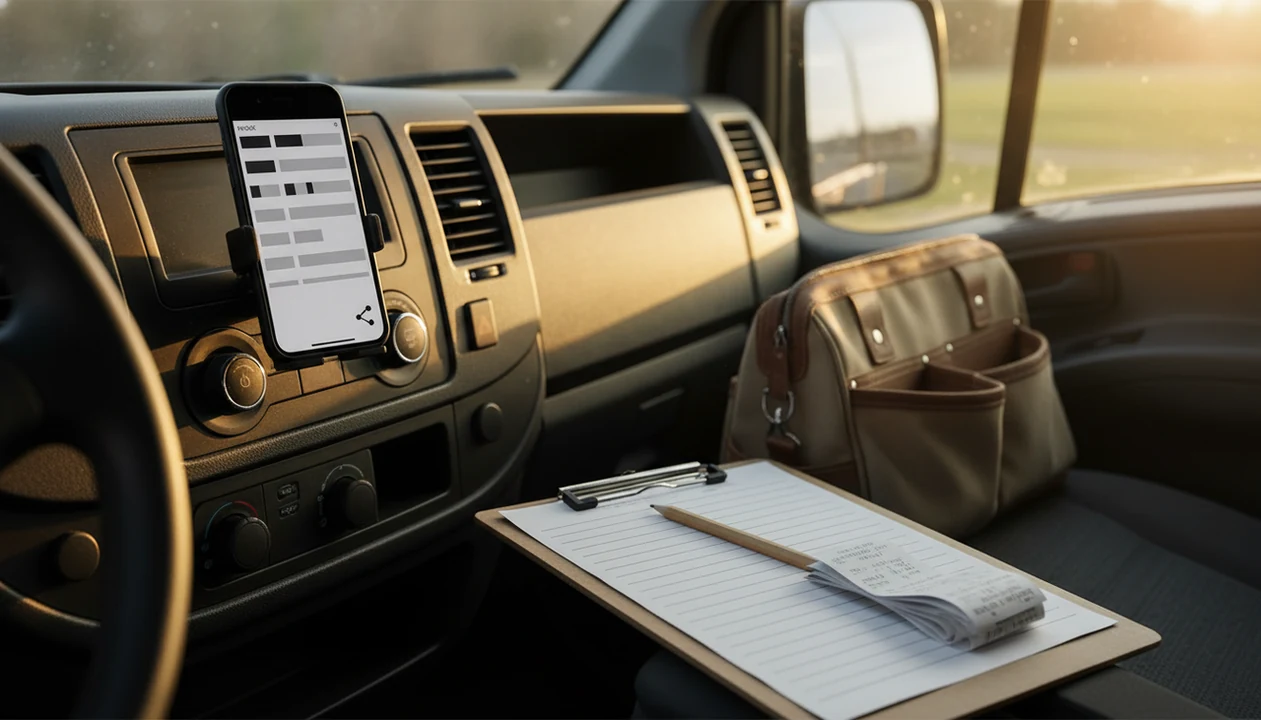
The parked-van send button is real.
For service work, mobile invoice delivery is often easier than waiting for a laptop because the invoice can be sent before the next job starts.
Five Facts About Mobile Invoice Delivery
- A mobile invoice app should let you create, save, and send an invoice without opening a computer.
- A professional invoice needs a business name, client name, line items, total, payment terms, and due date.
- The delivery method should match the client’s habit: email for inbox records, text for quick phone contact, PDF for forwarding, or a link when attachments are awkward.
- Saved clients, default terms, and reusable service items make phone invoicing faster after the first setup.
- A final review matters because small screens make missed errors easier, especially a copied due date or one wrong digit in a total.
Pew Research reported that 85% of U.S. adults owned a smartphone in 2024, which supports mobile-first billing for many clients source. Digital delivery is now normal, but the invoice still has to be readable.
Requirements Before You Send an Invoice With a Phone
What do you need before you send an invoice with a phone? You need enough business, client, pricing, and payment information to create a complete invoice record.
Have your business name, logo if available, address or contact details, and payment instructions ready. Add the client name, email address, phone number, or messaging contact. Then enter products or services, quantity, rate, tax or discount if applicable, and the total.
The document also needs an invoice number, issue date, due date, and payment terms. First-time clients take longer because their contact details are not saved yet. Once the client record exists, the next invoice is usually much faster.
If you are still building the document itself, the setup steps are covered in our guide to how to make invoice on phone.
How Mobile Invoice Delivery Works on a Phone
Mobile invoice delivery works by storing business, client, and item data, then rendering that data into a formatted invoice record. In plain language, the app turns typed fields into a bill your client can open, save, and pay from.
The invoice may be generated as a PDF, email body, share link, or message attachment. Delivery then uses the phone’s email client, messaging tools, share sheet, or the app’s own sending feature. Some apps also track whether the invoice is created, sent, viewed, paid, or overdue.
A formula error glowing red at night is exactly why many owners move away from spreadsheets.
Speed helps, too. Ookla reported a median U.S. mobile download speed of 242.38 Mbps in 2024, making phone-based sending practical even with PDF attachments source.
How To Use a Phone To Send an Invoice
Use this phone invoice workflow when the job is finished, the milestone is approved, or the client asks you to resend the bill.
- Open a mobile invoicing app and start a new invoice.
- Add or select the client record.
- Enter line items, quantities, prices, taxes, discounts, and payment terms.
- Review the invoice preview on the phone screen.
- Choose email, text, messaging app, PDF, or shareable link.
- Send the invoice and save the delivery record for follow-up.
Open the PDF before sending if the app offers a preview. Look at the invoice number, due date, and total like a client will see them, not like a person rushing between appointments.
FreshBooks, Wave, Zoho Invoice, Invoice2go, and other mobile invoicing apps support parts of this workflow, depending on plan and device.
Email, Text, PDF, and Link Options for Mobile Invoice Delivery
Choose the delivery method your client will actually open. Email creates a formal trail, while text or messaging apps can be faster when the whole relationship already runs through a phone.
| Delivery option | Use it when | Watch for |
|---|---|---|
| The client needs an inbox record or office forwarding | Wrong address, spam filters, buried threads | |
| Text or messaging app | The client communicates mainly by phone | Not every app supports SMS delivery |
| PDF attachment | The client wants a polished record for saving or printing | Attachment size limits or blocked files |
| Shareable link | Attachments fail or the client opens bills on mobile | Some clients dislike unknown links |
For iOS-specific setup, the invoice maker app for iPhone workflow may feel different from Android sharing. For freelancers and small businesses, the practical test is whether the app creates clear billing documents, sends them cleanly, and shows payment status; it does not need to replace a full accounting system.
Professional Checks Before You Send an Invoice From a Phone
Before you tap send, run a short invoice review. Small screens make small mistakes easier, and small mistakes can slow payment.
- Client identity: Check the client name, email address, phone number, and invoice number.
- Charges: Review each line item, quantity, rate, subtotal, tax, discount, and total.
- Payment timing: Confirm the due date and payment terms are visible.
- Message wording: Make sure the subject line or text says what the invoice is for.
- Preview: Open the PDF or invoice preview before delivery.
Saved defaults help. Reusable service items, default tax settings, and standard payment terms reduce retyping, especially for repeat work. If the project folder is named “final final,” slow down before billing the final file.
For Android users, saved contacts and share options are covered in more detail in how to make invoice on Android.
Common Mistakes When Sending an Invoice From a Phone
The most common phone invoice mistakes are rushing the final check, sending to the wrong place, and failing to keep proof of what was sent. Avoid them by treating the phone workflow like a real billing process, not a quick chat message.
- Preview the invoice before delivery, whether it is a PDF, email layout, or mobile invoice screen. Small formatting issues are easier to catch before the client sees them.
- Confirm the recipient details and thread. One wrong email address, phone number, or old message chain can send the invoice into the wrong workflow.
- Check the essentials: invoice number, payment terms, due date, tax, discounts, and total. Missing terms can turn a simple bill into a follow-up conversation.
- Match the delivery format to the client’s expectation. If they asked for an attachment, do not rely only on a link; if links work better, make sure the client knows what they are opening.
- Save the sent record in the app or your files. That record supports reminders, bookkeeping, and the awkward “I never got it” reply.
A clean send is usually a paid invoice’s first small advantage.
Payment Follow-Up After Mobile Invoice Delivery
After sending the invoice, save the sent record in the app so you can prove what was sent and when. If the amount is large or urgent, confirm the client received it before assuming the bill is in their workflow.
Track the payment status as sent, viewed, paid, or overdue if your app supports those labels. A polite reminder before or after the due date is often enough, especially when the client already said, “Can you resend that invoice?”
Fast sending does not guarantee fast payment unless payment options and follow-up are clear. Keep this focused on invoicing: delivery records, unpaid status, reminders, and PDF copies for your bookkeeper. It is not a substitute for tax filing or formal accounting advice.
A mobile invoicing app can make the next invoice easier by saving client records, reusable items, and payment status in one workflow.
Limitations
Phone invoicing is convenient, but it is not magic. It still depends on app features, client habits, and careful recordkeeping.
- Not every invoicing app supports SMS, messaging apps, reminders, attachments, or recurring invoices.
- Small screens can make it easier to miss typos, wrong totals, or incomplete contact details.
- First-time clients may take longer because their email or phone number must be entered first.
- Weak signal, attachment limits, or blocked links can delay delivery.
- Fast invoice delivery does not guarantee fast payment.
- Some clients still require invoices through a portal, purchase order system, or specific email address.
- Phone workflows need saved records, PDF copies, and clean payment status notes.
A phone can send the bill quickly. The business habit still matters.
FAQ
Can I invoice from iPhone?
Yes. iPhone users can create and send invoices through a mobile invoicing app, email, PDF attachment, or share link.
Can I invoice from Android?
Yes. Android users can send invoices with mobile apps, email, text, PDFs, or links depending on what the app supports.
Can I send invoices by text?
Yes, if your invoicing app or phone share options support SMS, messaging apps, or invoice links. If not, use email or a PDF as the fallback.
Can I send invoices by Gmail?
Yes. Create or export the invoice as a PDF, open Gmail on your phone, attach the file or paste the invoice link, and send it to the client.
Is a phone invoice professional?
Yes. A phone invoice can be professional when it includes complete fields, a clear total, payment terms, and a clean PDF or link.
Can I send an invoice for free?
Some apps offer free invoice sending, but limits may apply to clients, PDFs, reminders, tracking, or monthly invoice volume. Compare each app’s free and paid tiers before relying on it for regular billing.
Can clients pay from a phone?
Yes. Clients can often open and pay an invoice from a phone if the invoice includes supported payment instructions or a payment link.
Should I send PDF invoices?
PDF invoices are useful for records, forwarding, printing, and professional presentation. They are a strong fallback when links or message previews do not work well.