
How To Create an Estimate on Your Phone at a Job Site
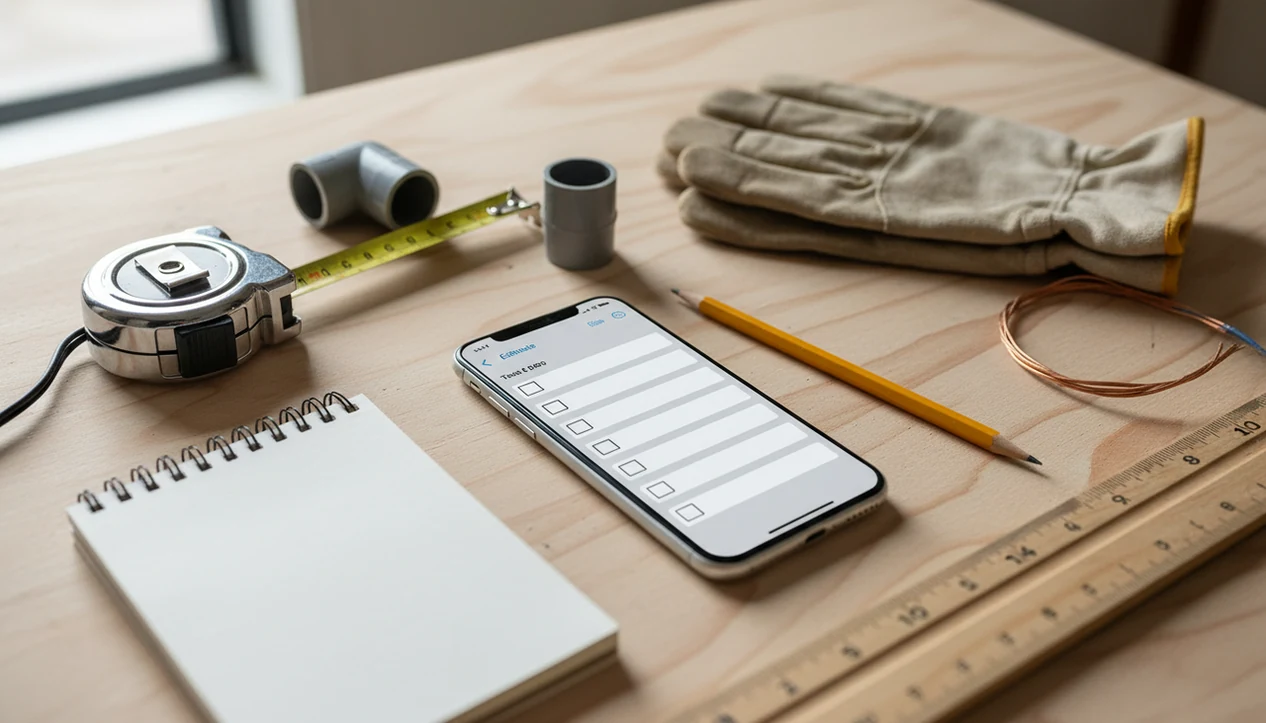
To learn how to create estimate on phone, open a mobile invoice or estimate app, choose Estimate, add the customer, enter the job scope, add labor and materials, review taxes and totals, then send the estimate by text or email before leaving the site.
> A phone estimate is a professional job quote created on a smartphone with customer details, scope, line items, taxes, terms, and approval notes that can be shared as a PDF, email, text, or link.
- Use a mobile estimate app so customer details, line items, taxes, photos, and totals stay in one workflow.
- Build the estimate while the job details are fresh: scope, quantities, parts, labor, discounts, expiration date, and approval notes.
- Review the estimate on your phone before sending, then track acceptance and convert the approved estimate into an invoice.
Mobile Estimate Workflow on a Smartphone
A mobile estimate workflow turns field notes into a customer-facing quote by moving data from a client record into line items, totals, taxes, and a PDF copy or shareable link. The app stores the job as structured data, which means the customer name, service address, tax setting, and payment terms can carry forward instead of being typed again.
Behind the screen, saved products, services, taxes, templates, photos, and status labels reduce the chance of a missing line item or yesterday's copied due date. That matters on a phone, where the screen is small and the worker may be standing beside muddy boots and a measuring tape.
Phone-based estimating is now normal work: Pew Research Center reports that 90% of U.S. adults own a smartphone as of 2024 (https://www.pewresearch.org/internet/fact-sheet/mobile/).
For field-service work, a phone estimate is often faster than a spreadsheet because it keeps the customer record, scope, pricing, and delivery in one mobile invoice workflow.
Job-Site Requirements Before a Phone Estimate
Before you make estimate on phone, gather the facts that affect approval, pricing, and later invoicing. A clean estimate starts before you tap the first line item.
- Customer identity: Capture the customer name, phone, email, service address, and billing address if it differs from the job site.
- Job facts: Record the requested work, visible problems, measurements, labor assumptions, material quantities, and any permit or disposal fees.
- Price controls: Use a saved price list when possible, especially for labor rates, parts, trip fees, and repeat services.
- Terms and timing: Set tax settings, deposit rules, approval notes, expiration date, and any schedule assumptions before sending.
- Connection check: Confirm whether the app can save drafts if the site has weak signal or the customer’s garage blocks service.
Aged invoice lists cause enough follow-up trouble later. Estimates should not begin with loose notes scattered across texts, photos, and a paper pad.
Phone Estimate App Steps at the Job Site
Here is how to use a phone estimate app at a job site without rebuilding the quote later at a desk.
- Open your mobile invoice or estimate app and tap the button to create a new document.
- Select Estimate, then choose an existing client or add a new customer record.
- Enter the job scope, site notes, photos, measurements, and exclusions while the details are fresh.
- Add labor, materials, trip fees, discounts, taxes, deposit terms, and an expiration date.
- Review the customer-facing PDF or preview screen for names, quantities, totals, and approval notes.
- Send the estimate by email, text, PDF, or link, then mark when to follow up.
Tools like Invoice Maker Teo, Invoice Simple, Wave, and Zoho Invoice can support estimates, PDFs, reminders, and payment tracking. For this phone-estimate workflow, Invoice Maker Teo is most useful when you need customer records, line items, PDF/text delivery, status tracking, and estimate-to-invoice conversion in the same mobile flow. A good invoice maker app for freelancers and small businesses should help create, send, and track invoices and estimates, not replace accounting judgment or project approval rules.
Step 1: Client Details for a Phone Estimate
Does the customer record matter when creating a phone estimate? Yes, because the client record controls where the estimate goes, who approves it, and how cleanly it can become an invoice later.
Start by selecting the customer from the app contact list or adding a new record. Confirm the spelling of the name, email address, phone number, job address, billing address, and preferred delivery method. The small typo is easy to miss when a client name is selected between calls.
Clean client data keeps the next invoice easy. It also helps when the customer says, “Can you resend that estimate?” and you need to pull up the right record without searching a long text thread. If you are comparing field quote tools, a best estimate maker app guide should explain contact records, not just templates.
Step 2: Job Scope, Photos, and Notes on a Phone
The scope section should say what work is included, what is excluded, and what the customer decided on site. Vague scope language is where many estimate disputes begin.
Record visible problems, requested work, measurements, site constraints, and customer choices. If the ceiling has water stains, take a photo and attach it to the estimate or job note. That image can explain why the quote includes inspection time, materials, or access work.
Keep exclusions plain. “Paint touch-up not included” is clearer than “finish work as needed.” Add notes for schedule limits, access rules, pets, gate codes, or parts that must be ordered. One messy note now can become three messages later.
Photos are not decoration. They help prove condition, clarify scope, and support the invoice if the approved work changes.
Step 3: Phone Estimate Line Items, Taxes, and Totals
Line items turn the job scope into pricing the customer can review. Use saved products, services, and price books where possible, because typed-from-scratch pricing is where quantities and margins drift.
- Labor: Add hourly rates, flat-rate services, minimum charges, or crew assumptions as separate line items. - Materials: Enter quantities, unit prices, parts, supplies, and special-order items with clear names. - Fees and discounts: Include trip fees, disposal fees, permit charges, deposits, discounts, and promotions before the subtotal. - Taxes: Apply the correct tax or VAT setting before sending, and check whether labor, materials, or both are taxable in your location. For U.S. jobs, verify taxability with your state revenue agency before quoting; the Federation of Tax Administrators lists official state tax agency sites at https://taxadmin.org/state-tax-agencies/. - Margins: Review markups and margins so a fast job-site quote does not quietly underprice the work.
For contractors and freelancers, saved line items are often safer than free text because they keep labor names, prices, taxes, and descriptions consistent across repeat jobs.
Step 4: Phone Estimate Review, PDF Preview, and Delivery
What should you check before sending a phone estimate? Review the customer details, scope, quantities, tax, discounts, expiration date, deposit terms, and approval notes before the customer sees the quote.
Open the PDF preview or customer-facing view on your phone. Look at it the way the customer will, not the way the app editor looks. If you are in a driveway with sun glare on the screen, step into the shade and read the name, scope, tax line, total, and expiration date out loud before tapping Send. Check the logo at the top, the tax line below the subtotal, and the notes field for payment terms. A paid invoice opened at the counter feels simple later only if the estimate was clean first.
Send the estimate by email, text, PDF attachment, or shareable link, depending on the customer’s preference. If they asked for text, do not bury the estimate in email only.
For service businesses, sending the estimate before leaving the site is often easier than waiting until evening because the scope and customer decisions are still fresh.
Step 5: Approval Tracking and Phone Estimate Conversion
After sending, the estimate needs a status, not a memory. Mark or track whether it is sent, viewed, accepted, declined, revised, or expired if your app supports those labels.
Once the customer accepts, many apps can convert the estimate into an invoice without retyping the line items. That helps preserve the original scope, quantities, tax settings, deposit terms, and customer record. If you need the full handoff process, an app that turns estimates into invoices should keep the estimate and invoice connected.
Follow-up matters too. Reminders and payment tracking keep the workflow organized after approval, especially when a deposit is due before scheduling. A freelancer checking unpaid status on a phone after a client asks for a resend should not have to search Gmail, Messages, and a spreadsheet.
Common Phone Estimate Mistakes at Job Sites
The most common phone estimate mistakes are not dramatic. They are small data errors that make the quote harder to approve or harder to invoice.
- Wrong customer record: Two similar names can send the estimate to the wrong person, especially when an old contact is reused.
- Thin scope language: Missing scope, vague exclusions, and forgotten photos leave room for disagreement after approval.
- Bad pricing inputs: Incorrect quantities, outdated prices, missing taxes, and free-text line items can damage margins quickly.
- Missing approval rules: No expiration date, deposit term, approval note, or delivery preference makes follow-up less clear.
- Disconnected follow-up: If the estimate status is not tracked, the team may not know whether to revise, remind, or invoice.
For repeat work, a free estimate maker app can be useful, but only if the template, saved items, and tax settings are reviewed before real customer quotes go out.
Limitations
Phone estimates are practical, but they are not the right control point for every job. Treat the phone as the capture and quoting tool, then add review when the project needs it.
- Poor connectivity can interrupt sending, syncing, photo uploads, or customer approval if offline support is limited.
- Small screens make long estimates harder to review than desktop screens, especially with many sections or alternates.
- Bad templates, outdated price books, or wrong tax settings can create inaccurate estimates very quickly.
- App lock-in can make it difficult to move years of historical estimates to another system later.
- Large, regulated, or high-risk projects may need office review, accounting review, legal terms, or manager approval before sending.
- Photos and notes help with scope, but they do not replace permits, inspections, engineering requirements, or contract documents.
- A phone estimate can still be wrong if the measurement, labor assumption, or material count was wrong on site.
If approval timing affects cash flow, map the estimate to invoice timeline before the first quote is sent.
FAQ
Can I make estimates on iPhone?
Yes. iPhone users can create estimates with a compatible mobile estimate or invoice app, then send the estimate by email, text, PDF, or link.
Can I make estimates on Android?
Yes. Android users can create and send estimates from mobile apps that support customer records, line items, taxes, PDF previews, and sharing.
What goes in a job estimate?
A job estimate should include the customer, service address, scope of work, line items, quantities, prices, taxes, terms, expiration date, and total. It should also state key exclusions or approval notes.
Can I add photos to estimates?
Yes. Photos help document job conditions, clarify scope, support customer approval, and reduce confusion when the estimate later becomes an invoice.
Can estimates become invoices?
Yes. Many mobile apps, including Invoice Maker Teo, can convert an accepted estimate into an invoice without retyping the customer, scope, and line items.
How do I price labor?
Price labor with an hourly rate, flat-rate service item, minimum charge, or saved labor line item. Check the margin before sending so the estimate covers time, overhead, and profit.
Should estimates include tax?
Estimates should include tax when local rules require it for the products or services being quoted. Configure tax settings before sending, and ask an accountant or local authority when rules are unclear.
Can I send estimates by text?
Yes. Many apps let you send a PDF copy or shareable estimate link by text, and Invoice Maker Teo can be used for phone-based estimate delivery when that workflow fits the customer.